How to read your Pack Leader gap report
Short answer: the gap report compares you with the businesses that rank above you on Google Maps. Read it top to bottom: the gap score shows how many weighted checks you match or beat, Maps rank by search shows where you and each competitor rank for every service, Your action plan lists up to 5 fixes ordered by impact, and the gap checklist shows each check side by side. Start with the action plan, then use the checklist rows marked Gap to see why.
Run your first audit with how to run a gap audit. Your reports live on the Gap audit page of your workspace.
1. Gap score and the competitor cards
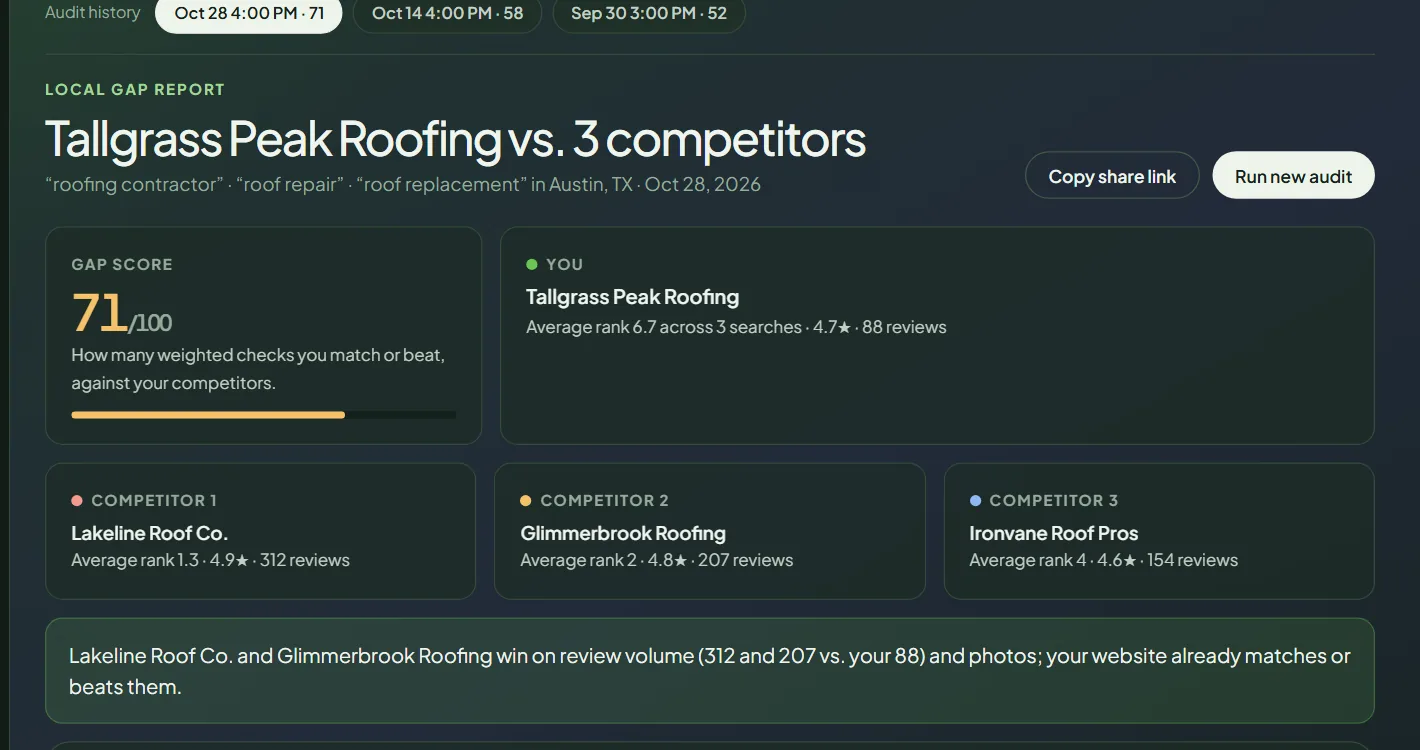 The top of a gap report for a sample business.
- Gap score (out of 100): "How many weighted checks you match or beat, against your competitors." Each check has a weight from 1 to 3. Checks where you are Even or You lead count for you. Green means 75 or more, amber 50 to 74, red under 50.
- You: your average Maps rank across your searches, your star rating and your number of reviews.
- Competitor cards: the same numbers for each competitor.
- The one-line summary under the cards names your clearest gap, for example the service where you rank lowest.
2. Maps rank by search
A table with one row per service and one column per business. Each number is the position on Google Maps for that service plus your city. 20+ means the business is not in the top 20.
Look for the row where competitors rank well and you don't. That service is usually your best first page or profile fix.
3. Local grid
The report shows a 5×5 local grid for your first service, 3 miles around your business. It shows where you rank point by point. See how to run a local grid to read the colors and run more.
4. Your action plan
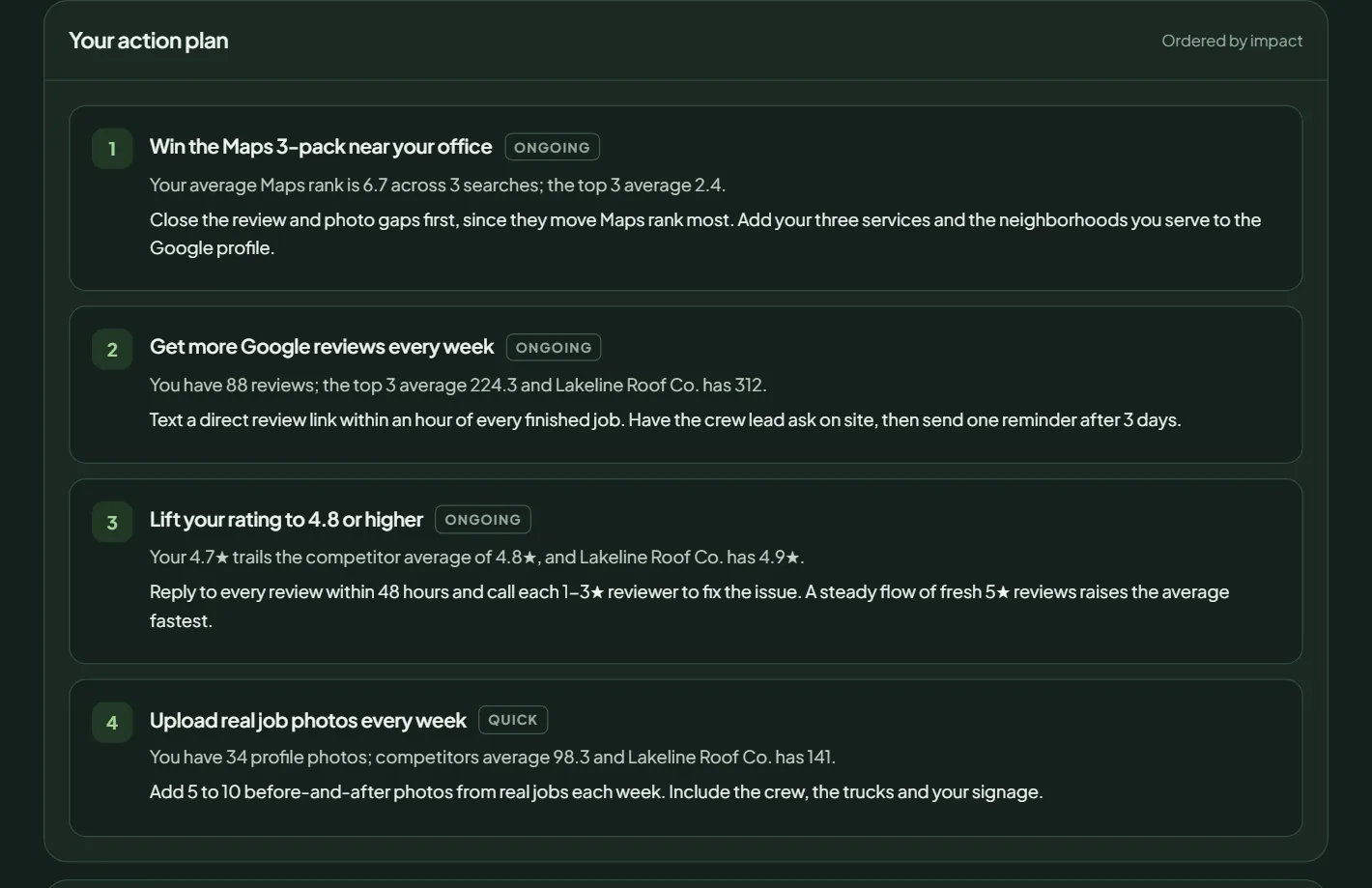 The action plan, ordered by impact.
Up to 5 actions, ordered by impact. Each one has:
- A title, such as "Build a roof replacement page".
- An effort tag: quick, medium or ongoing.
- Why: the numbers behind it, such as your rank against the competitors' ranks.
- How: the concrete steps.
Work from the top. Quick items are often done in an afternoon.
5. Gap checklist
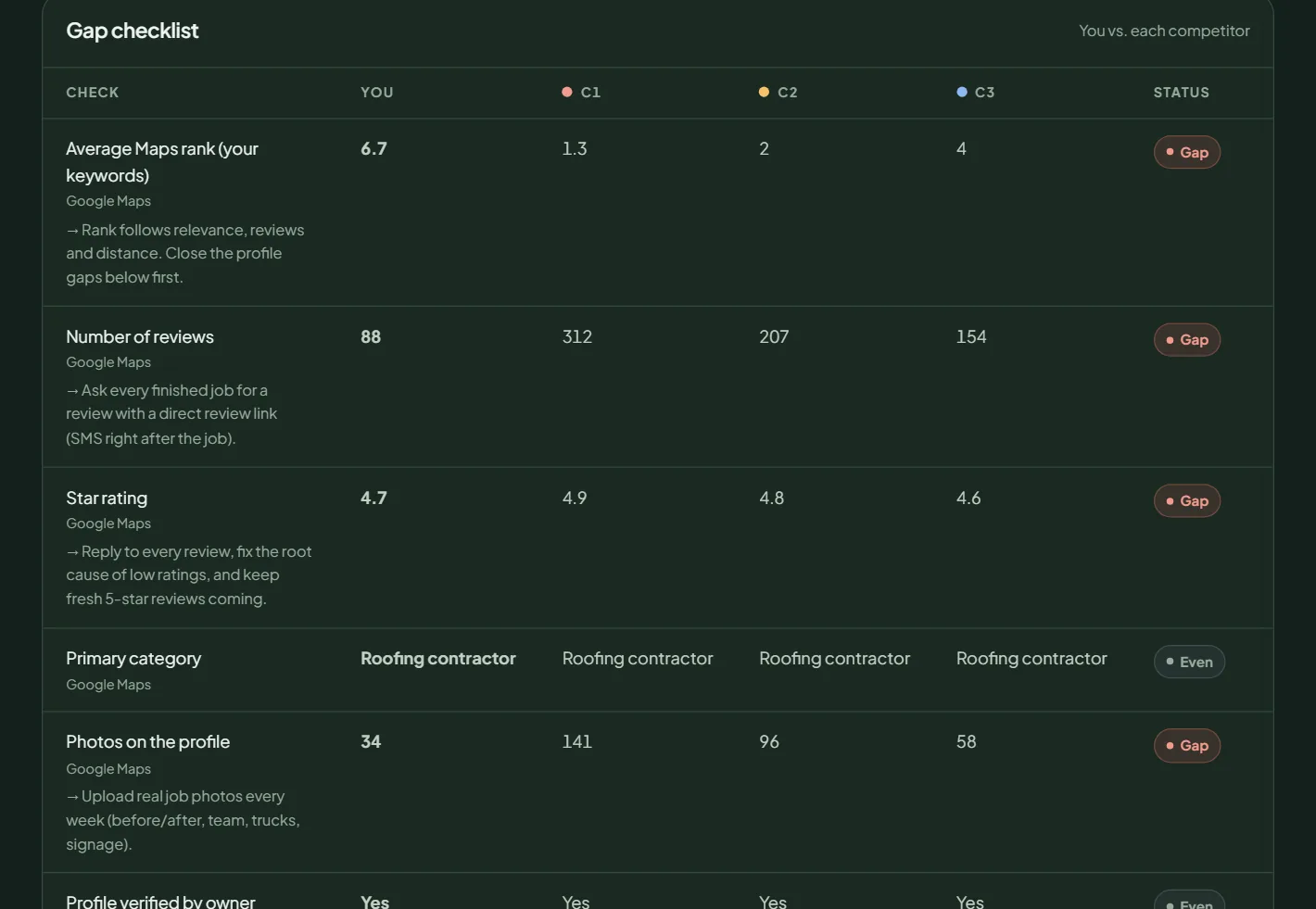 Each check, you against each competitor.
Each row is one check, with your value, each competitor's value and a status. Rows marked Gap also show the fix under the check name.
Google Maps checks: average Maps rank for your keywords, number of reviews, star rating, primary category, photos on the profile, profile verified by owner, opening hours listed, and website linked from the profile.
Website checks (on the homepage): city in the homepage title, service in the homepage title, local business schema, location or service area pages, click-to-call phone link, words on the homepage, review or rating schema, and an FAQ section with schema.
Status labels:
| Status | Meaning | In the score |
|---|---|---|
| You lead | You beat every competitor, or you have something most of them lack. | Counts for you |
| Even | You are in line with the competitors. | Counts for you |
| Gap | You are below the competitors' average, or most of them have something you don't. Fix these first. | Counts against you |
| Both missing | Nobody has it, you included. An easy way to stand out. | Counts against you |
| Different | Your primary category is not the one most competitors use. Check whether theirs fits your business better. | Not scored |
| n/a | Not enough data, for example when no competitor has a website. | Not scored |
Under the table you see each website's address and homepage title. Compare the titles: they show how competitors describe their service and city.
The audit does not check page speed, Google posts, Q&A, profile attributes or the profile description.
6. Google Maps top 10
One list per service, with each business's rating, reviews and category. Use it to spot strong businesses that are not on your competitor list, and add them in Brand identity if you want to track them.
Share the report
Copy share link copies a link to this report. Anyone with that link can open it, so share it only with people you trust, like a partner or your web designer. The Copy link (only you can open it) button at the top copies your workspace link, which only your account can open.
What to do next
- Do the first quick item in your action plan.
- Close the Gap rows in the Google Maps part of the checklist.
- Check which directories your competitors use with citation gaps.
- Re-run the audit after your changes. Each audit is saved in Audit history, so you can compare scores.
Frequently asked questions
What is a good gap score?
The score is the share of weighted checks where you match or beat your competitors. 75 or more shows in green, 50 to 74 in amber, and under 50 in red. A high score with a low Maps rank can mean the gap is distance or relevance for one service, so read the action plan and run a local grid.
Why does my rank in the report differ from what I see on my phone?
Google Maps results change with the searcher's exact location. Pack Leader searches each service plus your city. To see your rank around your area point by point, run a local grid.
Who can open my report's share link?
Anyone who has the link. Share it only with people you want to see the report. Your workspace link is different, and only you can open it.
Can I export the report as a PDF?
Not yet. You can share the report with the Copy share link button.
Related articles
- How to run a gap audit in Pack LeaderRun a Pack Leader gap audit in about 30 seconds. What to enter, how competitors are chosen, what it costs in credits, and what to do if it fails.
- How to run a local grid scan (and read the colors)Run a Pack Leader local grid to see your Google Maps rank point by point around your business, read the colors, and find out why you miss the 3-pack.
- How to find citation gaps in Pack LeaderFind the directory listings your Google Maps competitors have and you don't, in about 35 US directories, and read the results in Pack Leader.